How to Hide an App Page on iPhone and iPad in 2025
In the ever-evolving world of technology, privacy and customization remain at the forefront of user needs. Apple has consistently updated its iOS and iPadOS operating systems to offer more control over how your apps are displayed and organized. As of 2025, iOS 19 and iPadOS 19 have introduced new features and improvements in managing app pages on your iPhone and iPad. This guide will walk you through the latest methods for hiding app pages, providing a seamless way to declutter your home screen while keeping your apps accessible.
Why Hide App Pages?
Before diving into the how-to, let’s discuss why you might want to hide app pages:
- Privacy: Keeping certain apps out of immediate view can protect your privacy, especially if you share your device with others.
- Organization: Hiding unnecessary app pages can streamline your home screen, making it easier to find the apps you use most frequently.
- Focus: Reducing visual clutter can help you focus on tasks or apps that are most important to you.
Requirements
To hide app pages on your iPhone or iPad, ensure your device is running iOS 19 or iPadOS 19. These updates have introduced new features to manage app visibility more effectively.
Hiding App Pages: Step-by-Step Guide
Accessing the App Library
Introduced in iOS 14, the App Library is a feature that automatically organizes your apps into categories and is now more powerful in iOS 19. It allows you to keep apps off the home screen while remaining accessible.
- Swipe Left: Go to your home screen and swipe left until you reach the App Library. This will be the last page of your home screens.
- Search for Apps: Use the search bar at the top of the App Library to quickly find any app.
Hiding App Pages
Hiding entire app pages is a great way to clean up your home screen without deleting apps. Here’s how you do it in 2025:
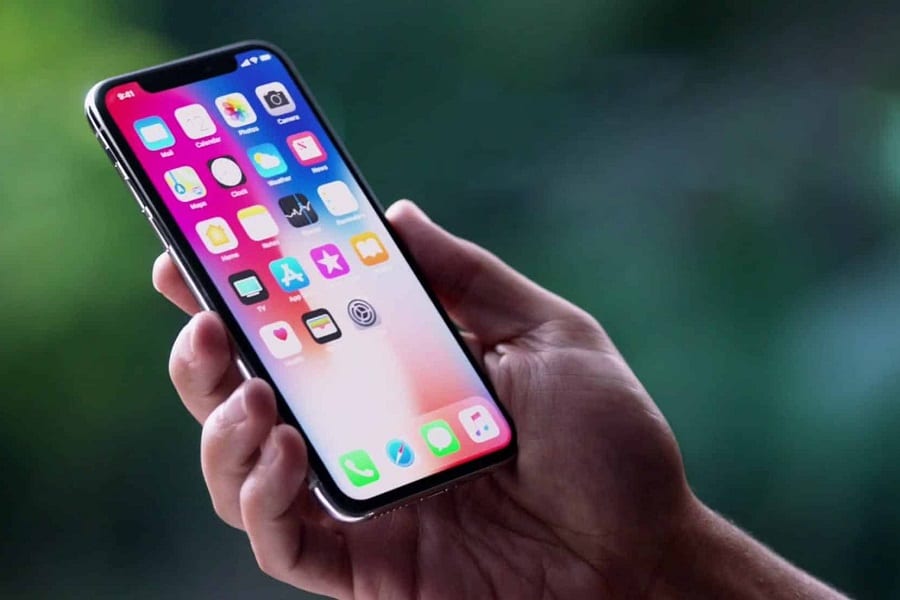
- Enter Jiggle Mode: Touch and hold an empty area on your home screen until the apps start to jiggle.
- Access Page Editing: Tap the page dots at the bottom of the screen. This will bring up a zoomed-out view of all your app pages.
- Hide Pages: You will see checkboxes beneath each app page. Uncheck the pages you wish to hide. As of iOS 19, you can also rename app pages here for better organization.
- Save Your Changes: Tap "Done" in the top right corner to save your changes and exit jiggle mode.
Managing Apps with Focus Modes
Focus Modes, introduced in iOS 15, have been enhanced in iOS 19 to offer even more customization. You can now link specific app pages to different Focus Modes, allowing you to automatically hide or display app pages based on your current activity.
- Open Settings: Go to "Settings" on your iPhone or iPad.
- Select Focus: Tap on "Focus" and choose or create a new Focus Mode that suits your needs.
- Customize Home Screen: Under the ‘Home Screen’ section, you can select specific app pages to show when that Focus Mode is active.
- Schedule Focus Modes: With iOS 19, you can now schedule Focus Modes based on time, location, or app usage, dynamically changing your app page visibility.
Utilizing Widgets for a Cleaner Look
Widgets have become integral to the home screen experience, providing information at a glance and reducing the need for multiple app pages. In 2025, widgets are more versatile and integrated than ever.
- Add Widgets: Enter jiggle mode by holding down on the home screen, then tap the ‘+’ icon in the top left corner to add widgets.
- Stack Widgets: Create widget stacks by dragging one widget on top of another. This feature now supports more widget sizes and interactive elements.
- Smart Rotate: Enable Smart Rotate for widget stacks to automatically display the most relevant widget based on your activity and time of day.
Advanced Customization with App Clips
App Clips, which are lightweight versions of apps, have seen increased adoption and functionality in iOS 19. They allow you to access specific app features without installing the full app, further reducing clutter.
- Access App Clips: Use QR codes, NFC tags, or links to launch App Clips for quick tasks.
- Organize Clips: Manage your App Clips in the App Library under the ‘Recently Added’ or ‘Suggested’ categories.
Privacy and Security Considerations
While hiding app pages can enhance privacy, it’s important to remember:
- Hidden Doesn’t Mean Secure: Hiding an app page does not restrict access to the apps on it. Use app locks or screen time restrictions for sensitive apps.
- App Data Visibility: Apps hidden from the home screen can still appear in search results and Siri suggestions unless restricted.
Conclusion
In 2025, managing your iPhone and iPad’s home screen is all about customization and simplicity. With iOS 19 and iPadOS 19, Apple has provided users with powerful tools to hide app pages, utilize widgets, and manage app visibility through Focus Modes. Whether you aim to reduce clutter, protect your privacy, or enhance productivity, these updates offer a user-friendly way to tailor your device to your needs.
By following this guide, you can take full advantage of the latest iOS and iPadOS features to create a more streamlined and personalized digital experience. Stay current with software updates to ensure you have access to the latest features and improvements in app management on your Apple devices.