A Comprehensive Guide to Installing iOS 26 Beta on Your iPhone and iPadOS 26 on Your iPad in 2025
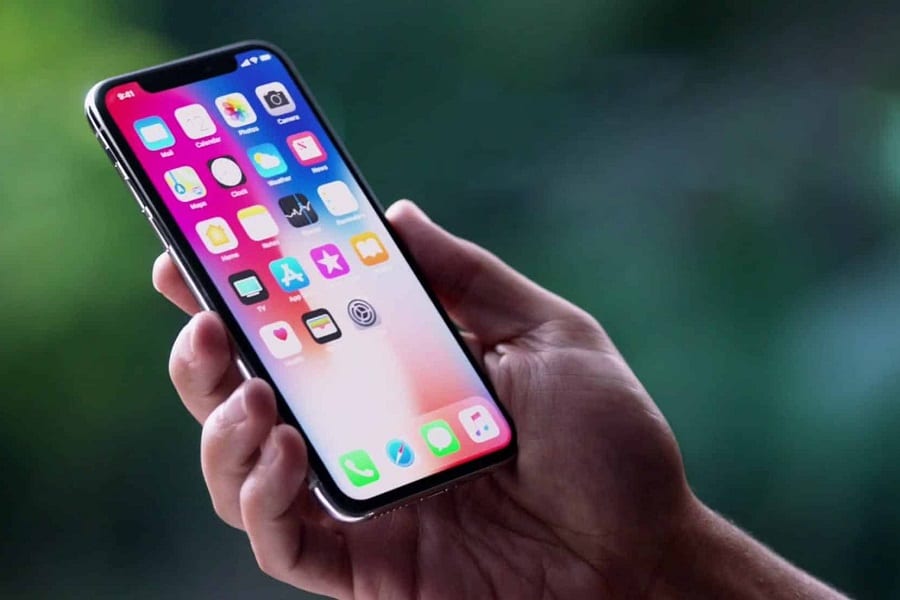
With the tech world buzzing over Apple’s latest software releases, iOS 26 and iPadOS 26 have taken center stage in 2025. These new operating systems bring a host of innovative features designed to enhance user experience and boost productivity. However, before these updates officially hit your devices, you have the opportunity to explore and test their beta versions. This guide will walk you through the process of installing iOS 26 Beta on your iPhone and iPadOS 26 Beta on your iPad, ensuring you enjoy a seamless and efficient experience.
Why Install the Beta?
Beta versions give you an exciting sneak peek into the future of Apple’s software ecosystem. As a beta tester, you get to experiment with cutting-edge features and provide valuable feedback to Apple, contributing to the refinement of the final release. Here are some compelling reasons to consider installing iOS 26 and iPadOS 26 Beta:
1. **Early Access to Features**: Experience the latest features and enhancements ahead of the official release.
2. **Participate in Development**: Your feedback helps Apple identify bugs and improve functionality.
3. **Stay Ahead**: Gain insights into how the new features can benefit your daily usage and productivity.
No products found.
Compatibility Check
Before diving into the installation process, it’s crucial to ensure your device is compatible with iOS 26 or iPadOS 26 Beta. As of 2025, here’s a list of supported devices:
**iPhones Compatible with iOS 26 Beta:**
– iPhone 15 series
– iPhone 14 series
– iPhone 13 series
– iPhone SE (3rd generation and later)
**iPads Compatible with iPadOS 26 Beta:**
– iPad Pro (all models, including M1 and M2 versions)
– iPad Air (4th generation and later)
– iPad (9th generation and later)
– iPad mini (6th generation and later)
Ensure your device falls within these lists to avoid compatibility issues during installation.
Back Up Your Device
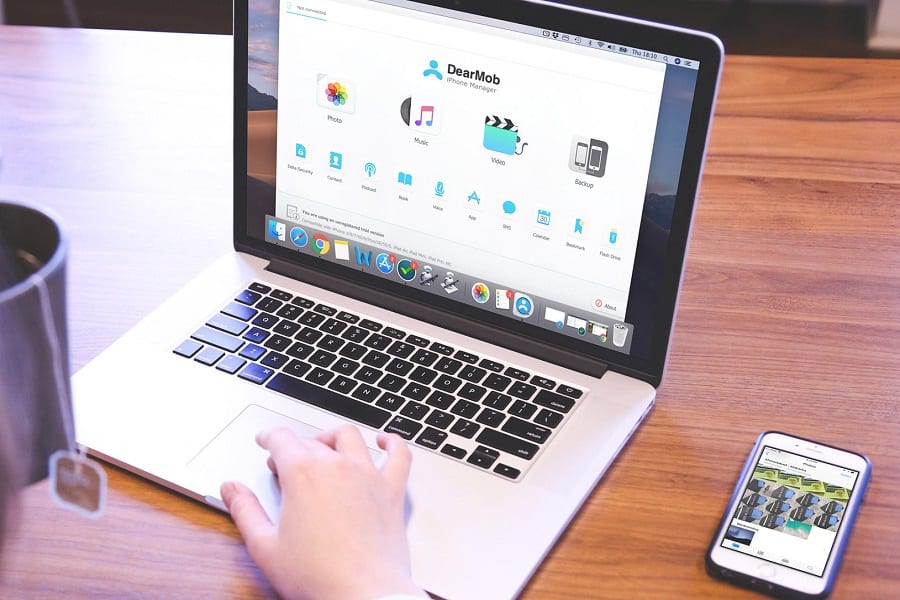
Before installing any beta software, backing up your device is a crucial step. This precaution ensures that your data is safe in case anything goes wrong during the installation. You can back up your iPhone or iPad using iCloud or your computer.
Using iCloud
1. Connect your device to a Wi-Fi network.
2. Go to **Settings > [Your Name] > iCloud > iCloud Backup**.
3. Tap **Back Up Now**. Ensure the backup is complete before proceeding.
Using a Computer
1. Connect your device to your computer using a USB cable.
2. Open Finder (on macOS Catalina or later) or iTunes (on Windows or macOS Mojave and earlier).
3. Select your device.
4. Click **Back Up Now**. Wait for the process to complete before disconnecting.
Enroll in the Apple Beta Software Program
To download the beta version, you must enroll in the Apple Beta Software Program. Here’s how:
1. On your iPhone or iPad, open Safari and navigate to the [Apple Beta Software Program website](https://beta.apple.com).
2. Sign in with your Apple ID.
3. Agree to the terms and conditions.
4. Select the appropriate OS for your device (iOS for iPhones, iPadOS for iPads).
5. Follow the on-screen instructions to enroll your device.
Download and Install the Beta Profile
After enrolling, you need to download and install the beta profile on your device. This profile authorizes your device to download and install the beta software.
1. On your enrolled device, go to **Settings > General > Software Update**.
2. Tap **Download Profile**.
3. Follow the prompts to install the profile.
4. Restart your device to activate the profile.
Installing iOS 26 Beta/iPadOS 26 Beta
Once your device is enrolled and the beta profile is installed, you can proceed to download and install the beta software.
1. Go to **Settings > General > Software Update**.
2. You should see the iOS 26 Beta or iPadOS 26 Beta update available.
3. Tap **Download and Install**.
4. Follow the on-screen instructions to complete the installation.
This process may take some time, so ensure your device is connected to a reliable Wi-Fi network and has sufficient battery life or is plugged into a power source.
Post-Installation Tips
After installing the beta, here are some tips to optimize your experience:
– **Explore New Features**: Dive into the new functionalities and see how they enhance your device’s usability.
– **Report Bugs**: If you encounter any issues, use the Feedback Assistant app to report them to Apple.
– **Stay Updated**: Keep an eye out for subsequent beta updates, as they often contain bug fixes and additional enhancements.
Troubleshooting Common Issues
Beta software is inherently less stable than official releases. Here are some common issues and their solutions:
– **Performance Lags**: Restart your device or clear unnecessary apps running in the background.
– **App Crashes**: Update apps regularly, as developers often release fixes for beta compatibility.
– **Battery Drain**: Reduce background activity and turn on Low Power Mode if necessary.
Uninstalling the Beta
If you encounter significant issues or simply wish to revert to the stable version, you can uninstall the beta software.
1. **Back Up Your Data**: Ensure your important data is backed up.
2. **Restore Using Finder or iTunes**:
– Connect your device to your computer.
– Open Finder or iTunes.
– Select your device and choose **Restore**.
3. Follow the on-screen instructions to restore your device to the latest official release.
Looking Forward
Participating in the beta testing phase of iOS 26 and iPadOS 26 not only gives you early access to new features but also helps shape the final product. Your feedback is invaluable in creating a polished and robust software experience for millions of users worldwide. Enjoy exploring the future of Apple’s ecosystem, and contribute to its evolution!
By following this guide, you should have a smooth experience installing and testing iOS 26 Beta and iPadOS 26 Beta. Remember, while beta testing is exciting, it’s also essential to be aware of potential risks and back up your data regularly. Happy testing!
—
Note: This article is intended for informational purposes and does not ensure complete functionality of beta software on all devices. Always proceed with caution and be prepared for potential issues when testing beta versions.