How to Hide an Application Page on iPhone and iPad in 2025
In 2025, managing the vast array of apps on our iPhones and iPads has become more intuitive and customizable than ever before. With Apple’s continuous updates to iOS and iPadOS, users now have more control over their home screens, app organization, and privacy. This guide will walk you through the latest methods to hide application pages on your iPhone and iPad in 2025, ensuring a cleaner interface and enhanced privacy.
Why Hide Application Pages?
Before diving into the steps, let’s explore why you might want to hide application pages:
- Privacy: Protect sensitive apps from prying eyes.
- Organization: Declutter your home screen without deleting apps.
- Focus: Minimize distractions by hiding less-used apps.
- Aesthetic: Create a cleaner, more streamlined interface.
Prerequisites
Before you start hiding app pages, ensure your device meets the following criteria:
- Device Compatibility: iPhone 8 or later, iPad (5th generation) or later.
- Operating System: iOS 19 or iPadOS 19, or later.
Hiding Application Pages on iPhone and iPad
Apple has streamlined the process of hiding application pages with its latest updates. Here’s how you can do it:
Accessing the Home Screen Editor
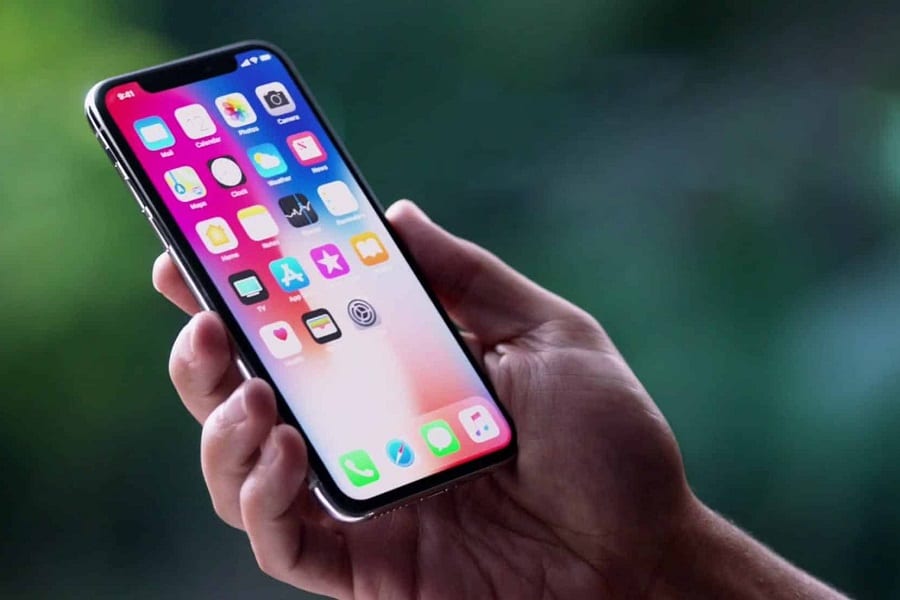
- Enter Jiggle Mode: On your home screen, press and hold anywhere until the apps begin to jiggle.
- Access Page Thumbnails: Tap the dots at the bottom of the screen representing your home screen pages.
Hiding Pages
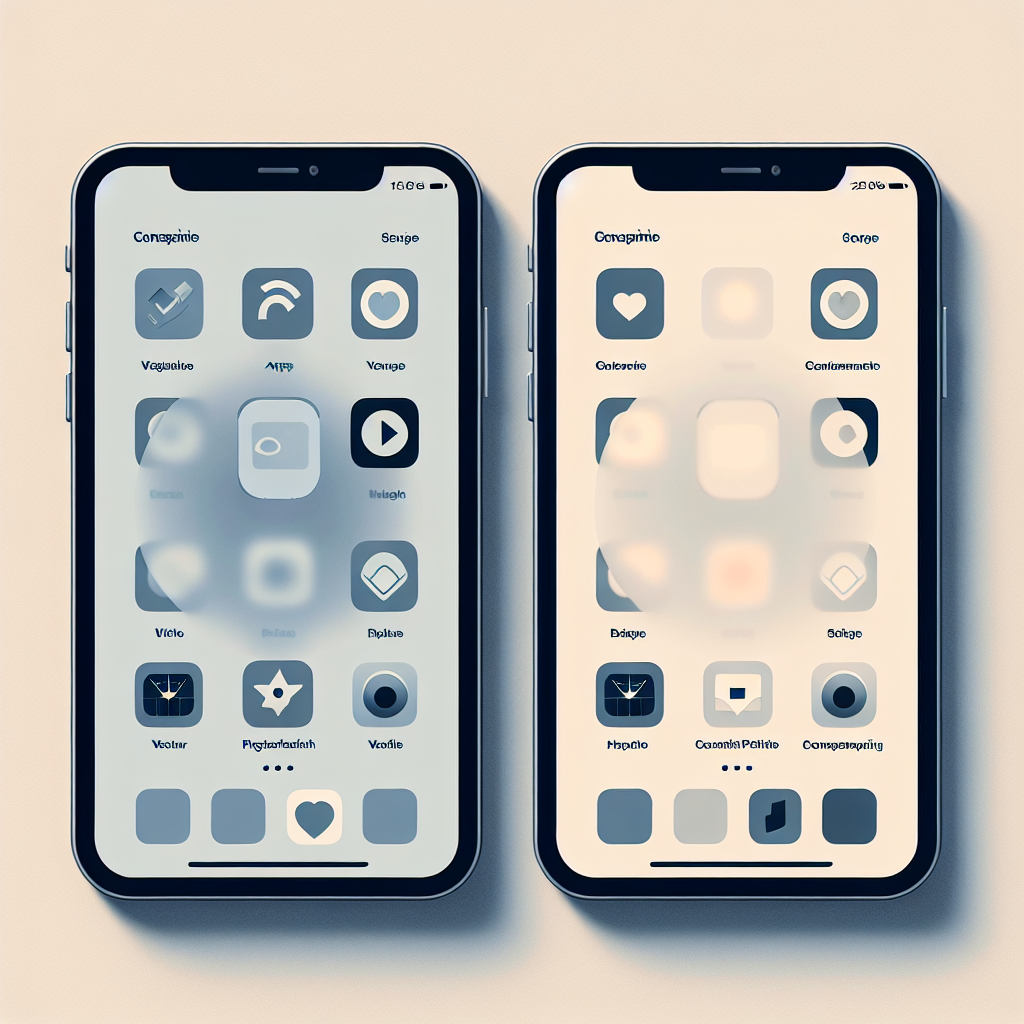
- Preview Pages: You’ll see thumbnails of all your home screen pages.
- Select Pages to Hide: Tap the checkmark below any page thumbnail you wish to hide. The checkmark will disappear, indicating the page is hidden.
- Apply Changes: Tap "Done" in the upper right corner to save your changes.
Managing Hidden Pages
- View Hidden Pages: To see which pages are hidden, repeat the process to enter the home screen editor.
- Unhide Pages: Simply tap the empty circle below a hidden page thumbnail to make it visible again.
- Reorganize Pages: Drag and drop thumbnails to rearrange page order as desired.
Additional Features and Tips
App Library Utilization
The App Library, introduced a few years back, is a powerful tool for app organization:
- Accessing the App Library: Swipe left past your last home screen page.
- Search and Find: Use the search bar at the top to quickly locate apps.
- Categorization: Apps are automatically grouped by categories such as Social, Productivity, and Entertainment.
Focus Modes
Focus Modes have been expanded in 2025, allowing for more dynamic control:
- Custom Focus Modes: Create custom modes that automatically hide certain app pages when activated.
- Scheduled Focus: Set schedules for Focus Modes to auto-activate during specific times, such as work hours or bedtime.
Smart Stacks and Widgets
Widgets have evolved significantly, providing more interactive features:
- Smart Stacks: Customize Smart Stacks to show or hide specific widget content based on time, location, or activity.
- Interactive Widgets: Engage with apps directly from widgets, reducing the need to navigate to app pages.
Security and Privacy Enhancements
App Privacy Reports
Apple continues to emphasize user privacy with enhanced app privacy reports accessible via Settings:
- Privacy Dashboard: Provides a comprehensive overview of app activity, including how often apps access your location, camera, and more.
- Permission Management: Easily modify app permissions directly from the privacy dashboard.
Hidden Apps and Parental Controls
For families, managing app visibility has been integrated with parental controls:
- Screen Time: Set limits and hide apps based on age ratings or individual app selections.
- Family Sharing: Manage app access for family members through shared settings.
Troubleshooting Common Issues
Apps Not Hiding
- Check Compatibility: Ensure your device and OS version support these features.
- Restart Device: A simple restart can resolve temporary glitches.
- Software Update: Make sure your device is running the latest software update.
Hidden Apps Not Accessible
- Search Functionality: Use the built-in search by swiping down on the home screen to find hidden apps.
- App Library Access: All apps remain accessible via the App Library, even if their pages are hidden.
Conclusion
Hiding application pages on your iPhone and iPad offers a flexible way to manage your digital environment. With Apple’s advancements in iOS and iPadOS, maintaining a clutter-free and private interface is easier than ever. Whether you’re looking to enhance privacy, increase productivity, or simply enjoy a more organized home screen, these tools and tips will help you tailor your device to your unique needs in 2025.