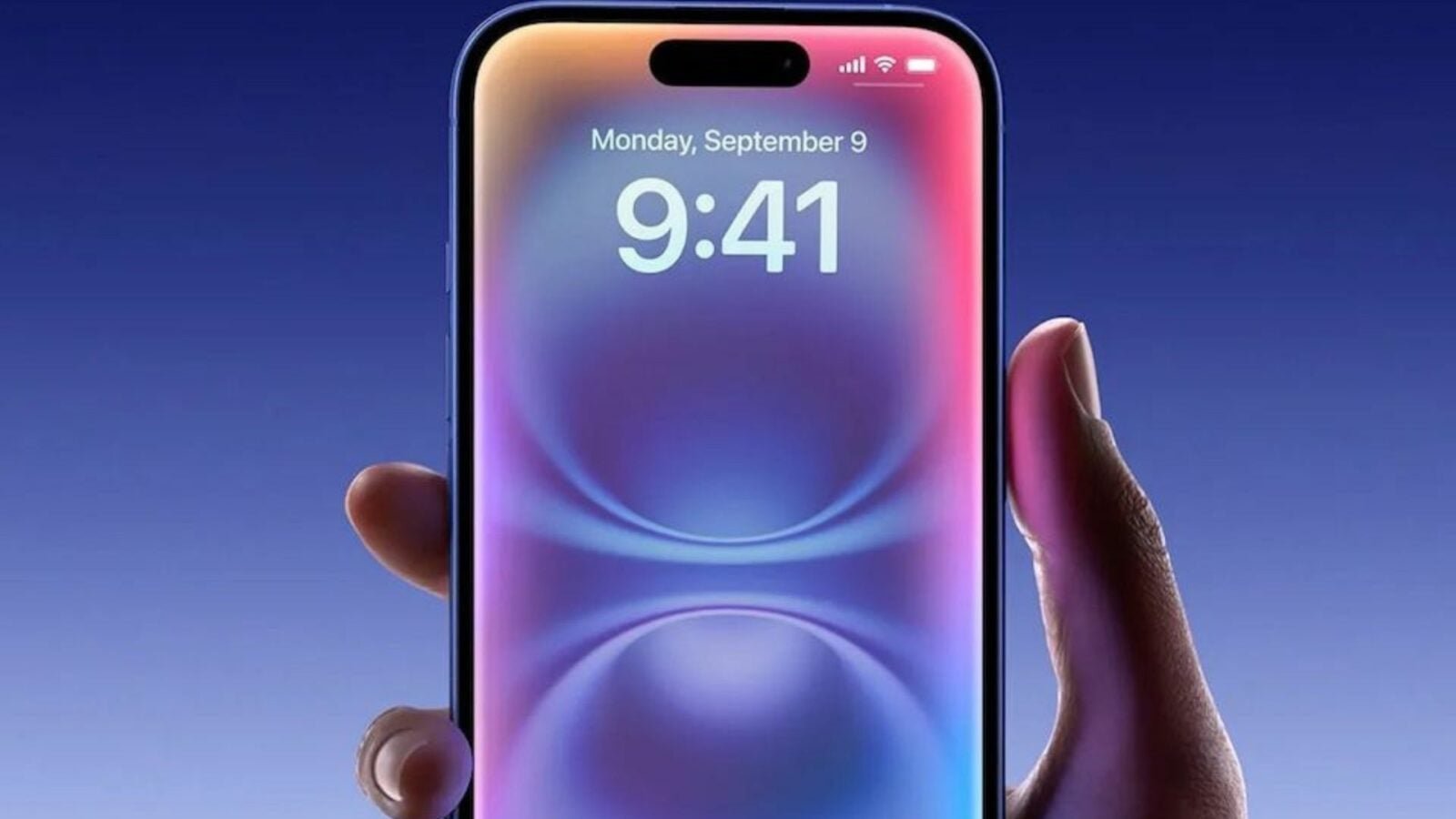
Apple intends to launch the version of Siri powered by Apple Intelligence in 2026, as CEO Tim Cook recalled a few weeks ago. This new version of the assistant will be able to analyze the user’s personal context and interact with other applications on the iPhone.
We just have to hope that Siri doesn’t take the opportunity to spy on our conversations, which has already earned Apple a hefty fine in a high-profile court case. Moreover, you can now ensure that Siri doesn’t use your data to improve itself. Here’s how to do it.
How to stop Siri from storing your conversations to improve
Apple has never hidden the fact that it stores excerpts from your interactions with Siri to improve his assistant. “ “Improve Siri and Dictation” allows Apple to store a clip of your audio interactions with Siri, Dictation, and Translate for review by employees to help Apple develop and improve Siri, Dictation, and certain other language processing features, such as Translate or Voice Control. »
Fortunately, there’s no obligation to share your audio data extracted from Siri or Dictation. Here’s how to opt out of program for improving Siri and Dictation on iPhone and iPad.
No products found.
- Go to Settings > Privacy & Security > Analytics & Improvements
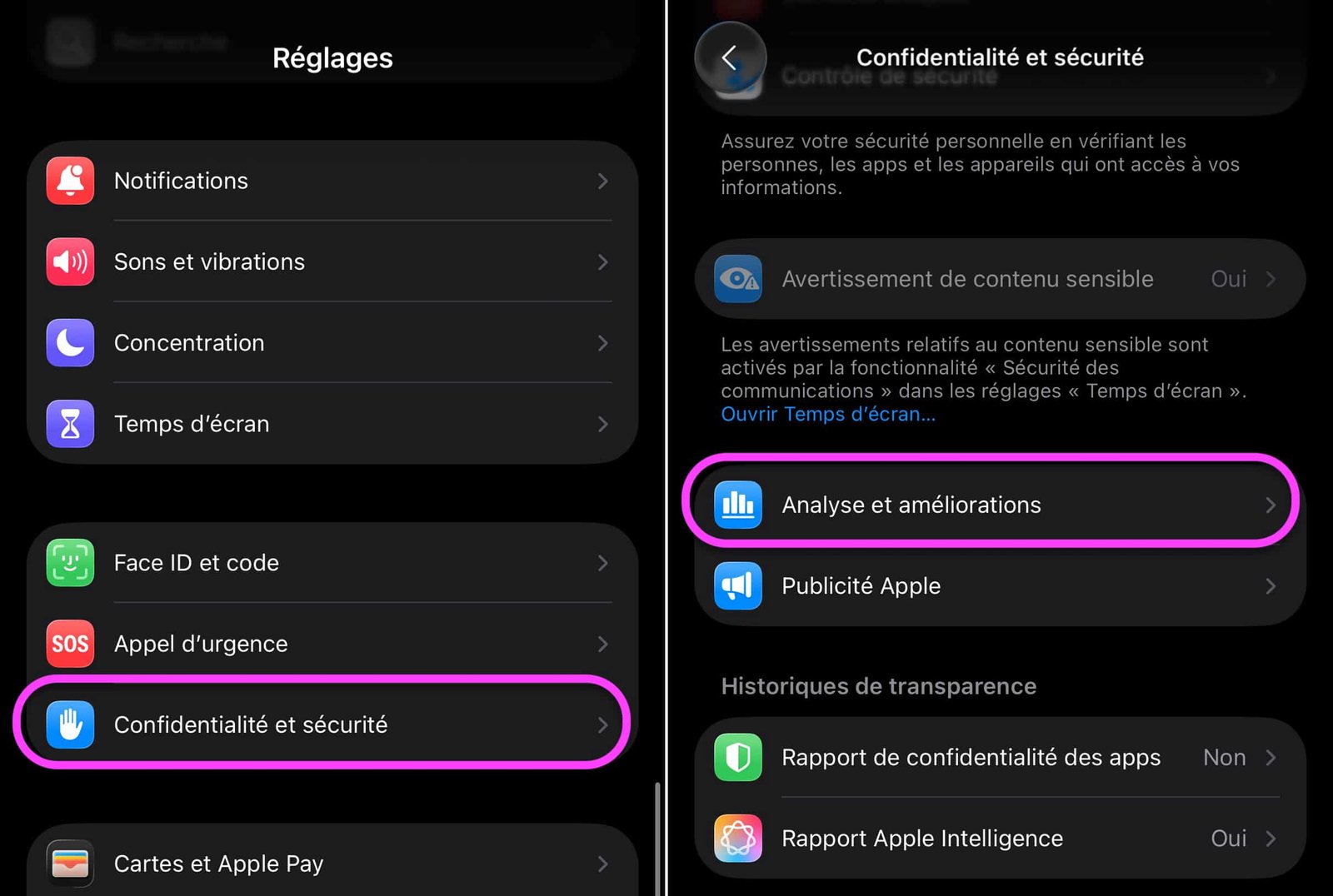
© iOS screenshot by pocketphotography.com
- Turn off the “Enhance Siri and Dictation” option
© iOS screenshot by pocketphotography.com
- Return to the main Settings screen
- Go to Siri & Search (or Apple Intelligence & Siri) and continue to “Siri History & Dictation”
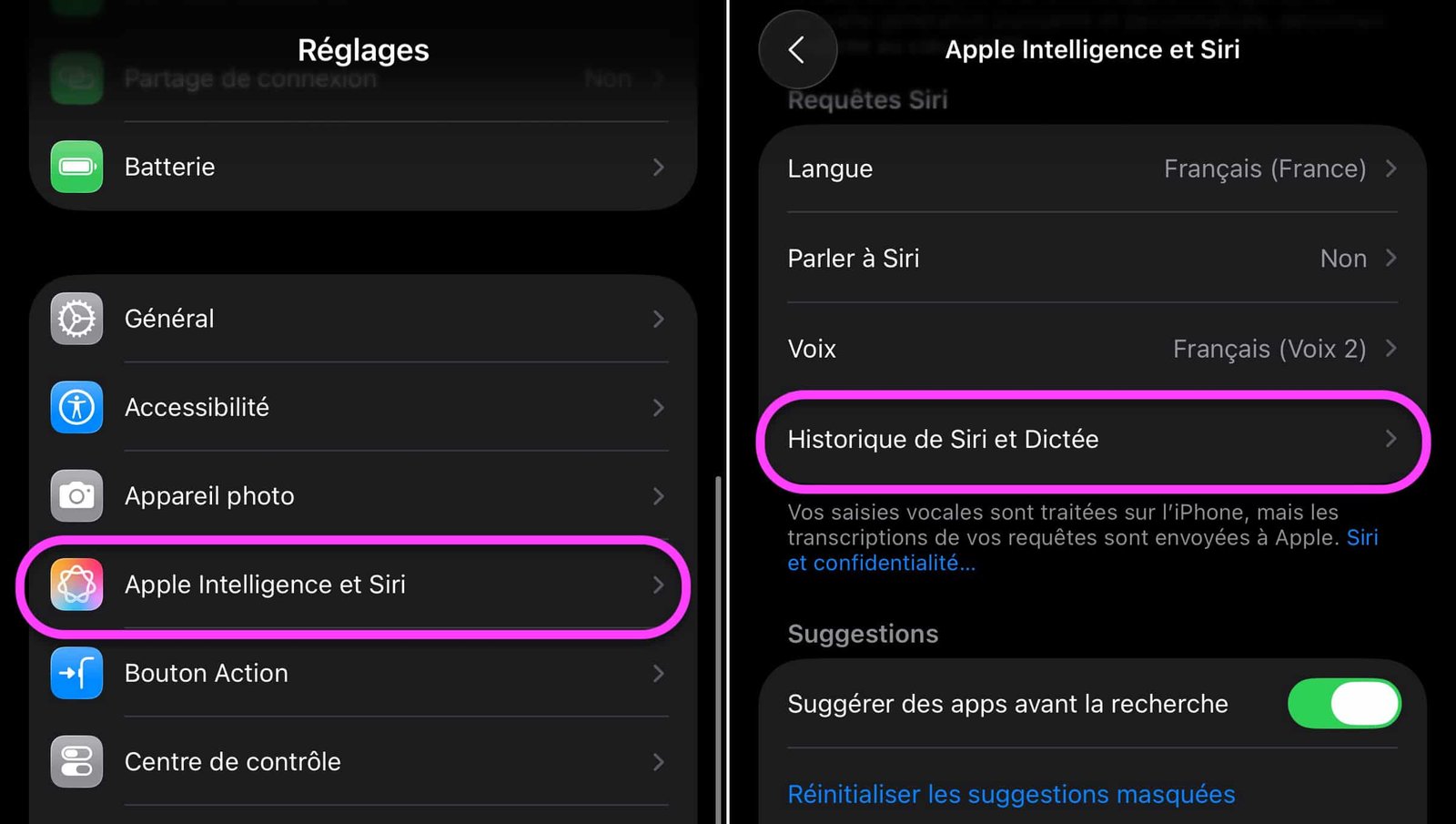
© iOS screenshot by pocketphotography.com
- Press “Delete History” and validate the operation to erase all data stored on Apple servers

© iOS screenshot by pocketphotography.com
The method for opting out of the “Enhance Siri & Dictation” program is somewhat different on Mac.
- Click on the Apple menu () and go to System Settings > Privacy & Security > Analysis & Improvements
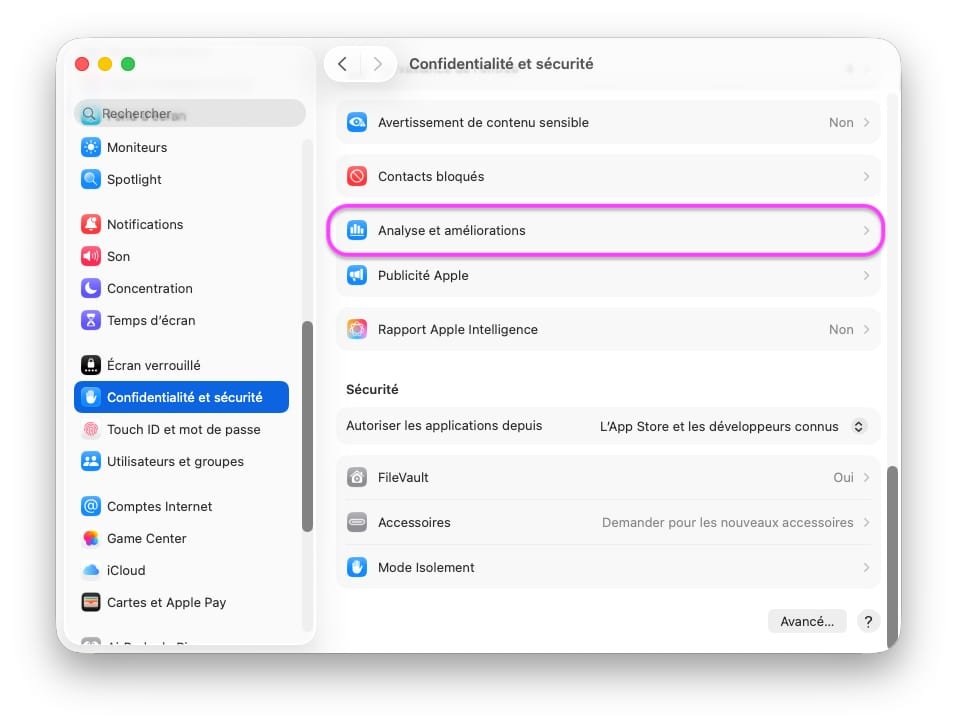
© macOS screenshot by pocketphotography.com
- Find the “Improve Siri and Dictation” option and turn it off
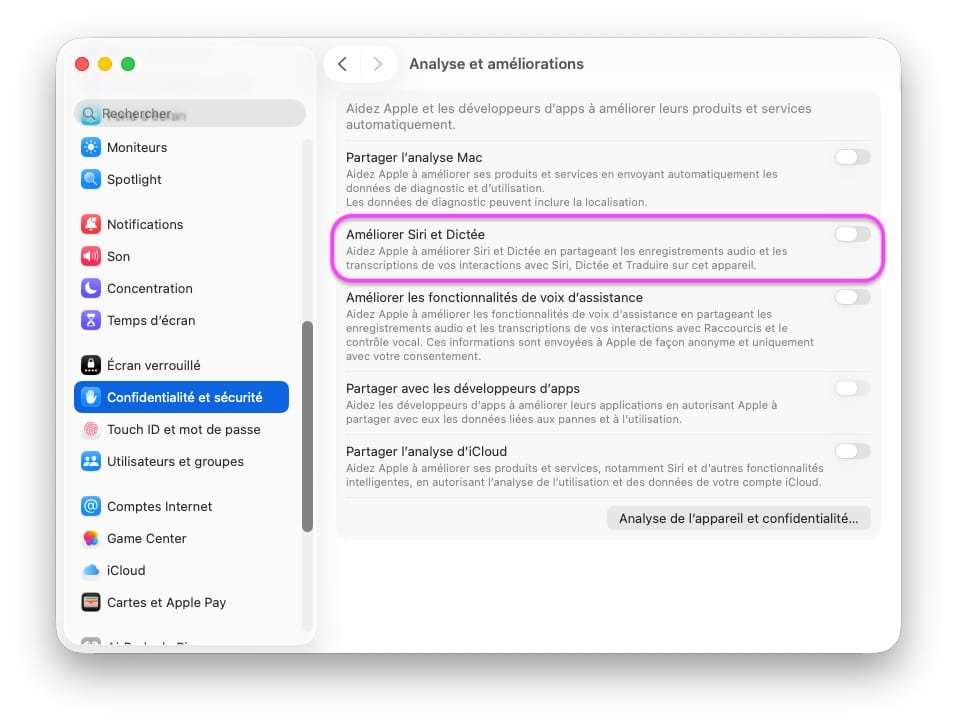
© macOS screenshot by pocketphotography.com
- Return to the main System Settings menu and look for the menu on the left, Apple Intelligence and Siri. You will find on the panel displayed on the right, the option “Delete Siri and Dictation history…”

© macOS screenshot by pocketphotography.com
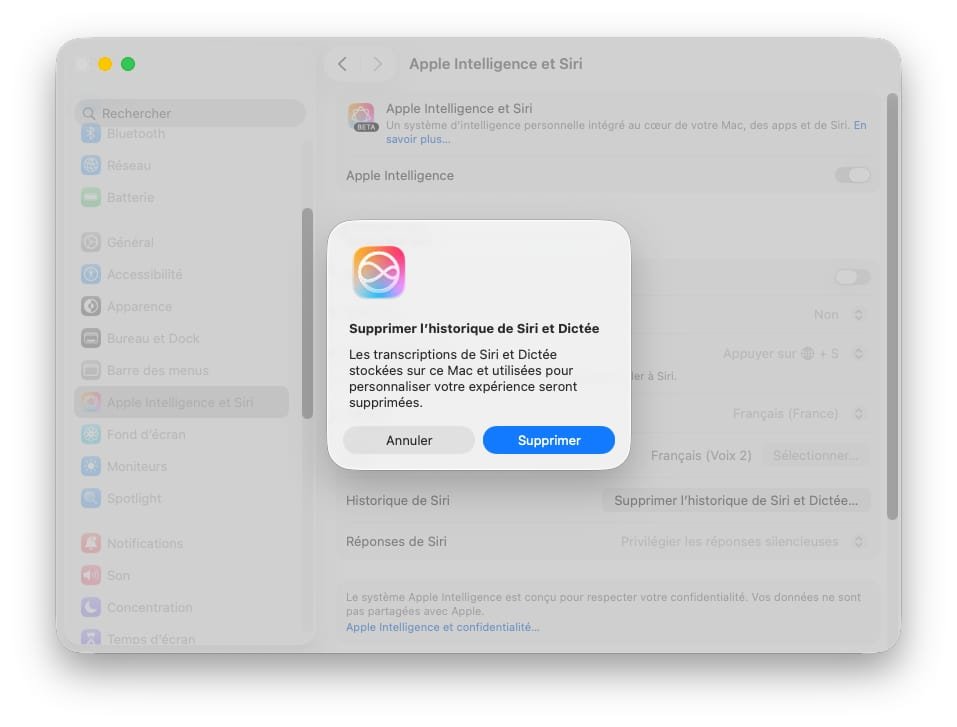
- Click on it and confirm by clicking “Delete” to delete Siri history from your Mac
© macOS screenshot by pocketphotography.com
By following this process, you delete data already saved by Apple and prevent new audio clips from being saved. You can also do the same on HomePod by going to the Home app settings.

pocketphotography.com – Official pocketphotography.com app
By: Keleops AG