iOS offers different accessibility options, useful for people with disabilities, but not only. Some of these features can be diverted to take advantage of them for everyday use, such as this tip allowing you to reduce the brightness below the minimum threshold. But accessibility also means control functions for use by a third party, typically a child. Many parents want to have a way to monitor their child’s use of an iPhone or iPad. Let’s see in particular how to limit the use of an iOS device to a single app. It is in fact about taking advantage of the guided access functionality.
How to use the Guided Access function to limit the use of your device to a single app?
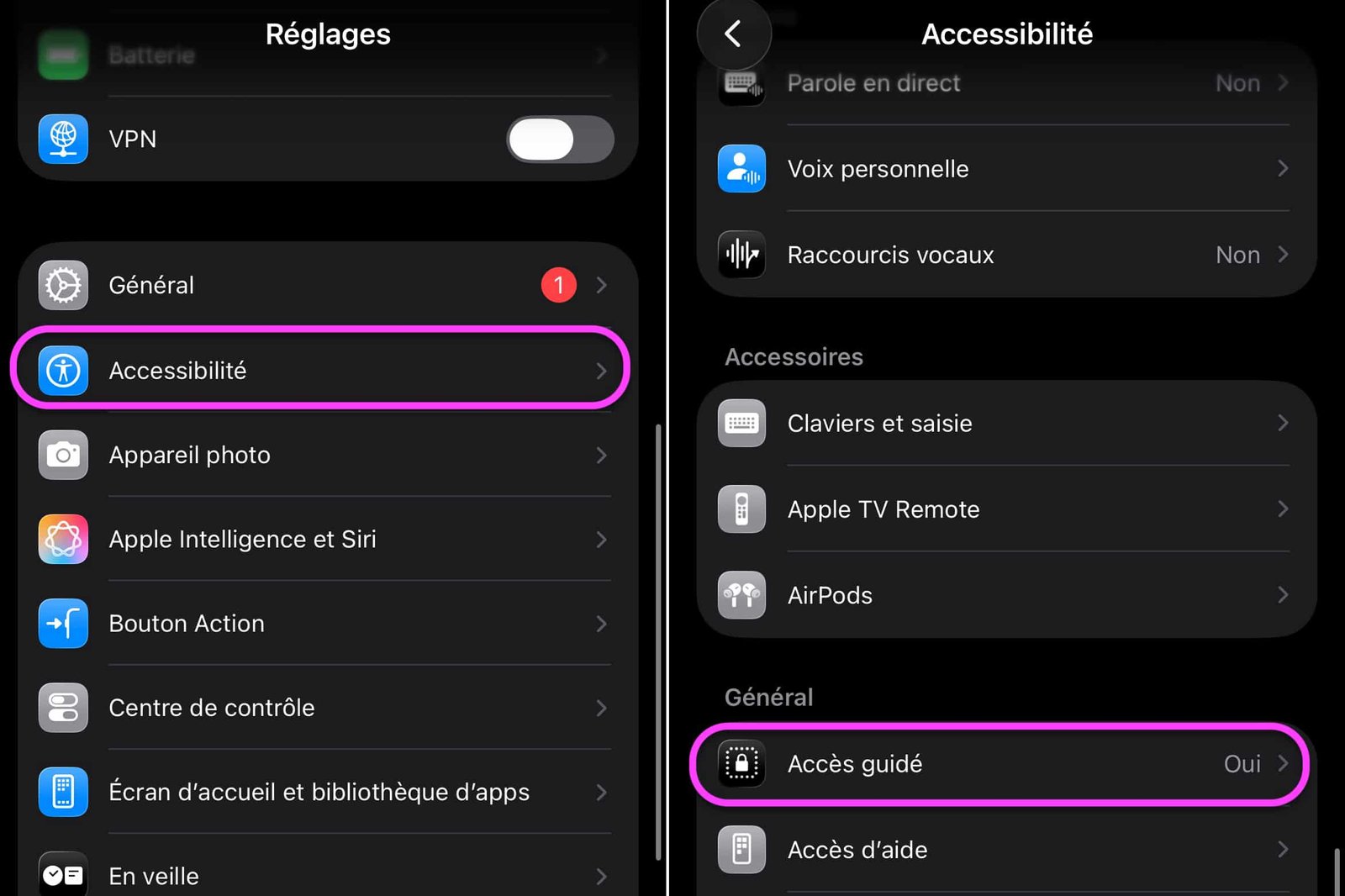
Here is the procedure to follow:
- Go to Settings > Accessibility > Guided Access
© iOS screenshot by pocketphotography.com
No products found.
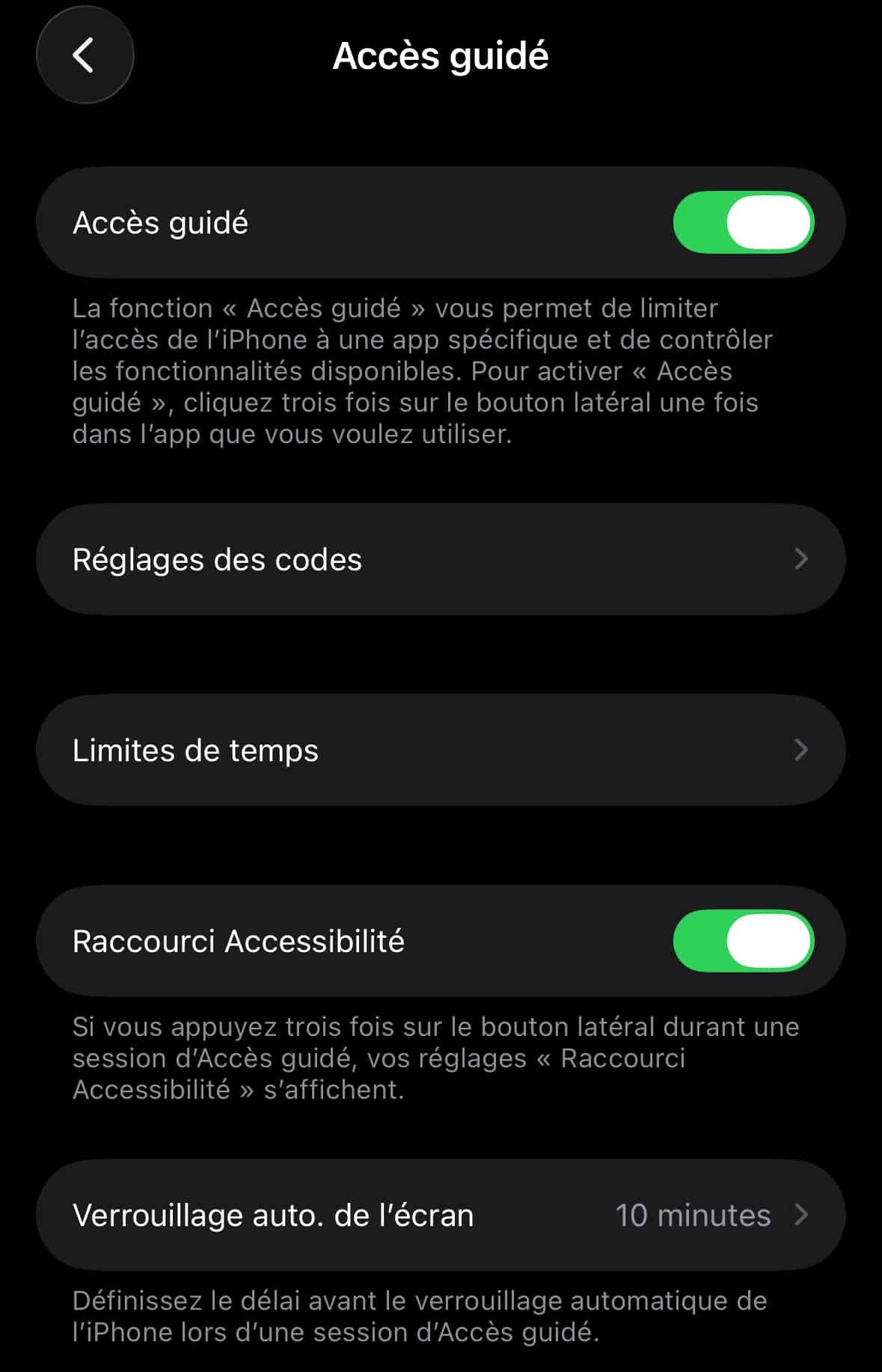
- Enable “Guided Access” at the top
© iOS screenshot by pocketphotography.com
Thus, each time the user is in an app, it is possible to launch guided access by tapping the Home button three times or the Power side button for iPhones without a Home button.

© iOS screenshot by pocketphotography.com
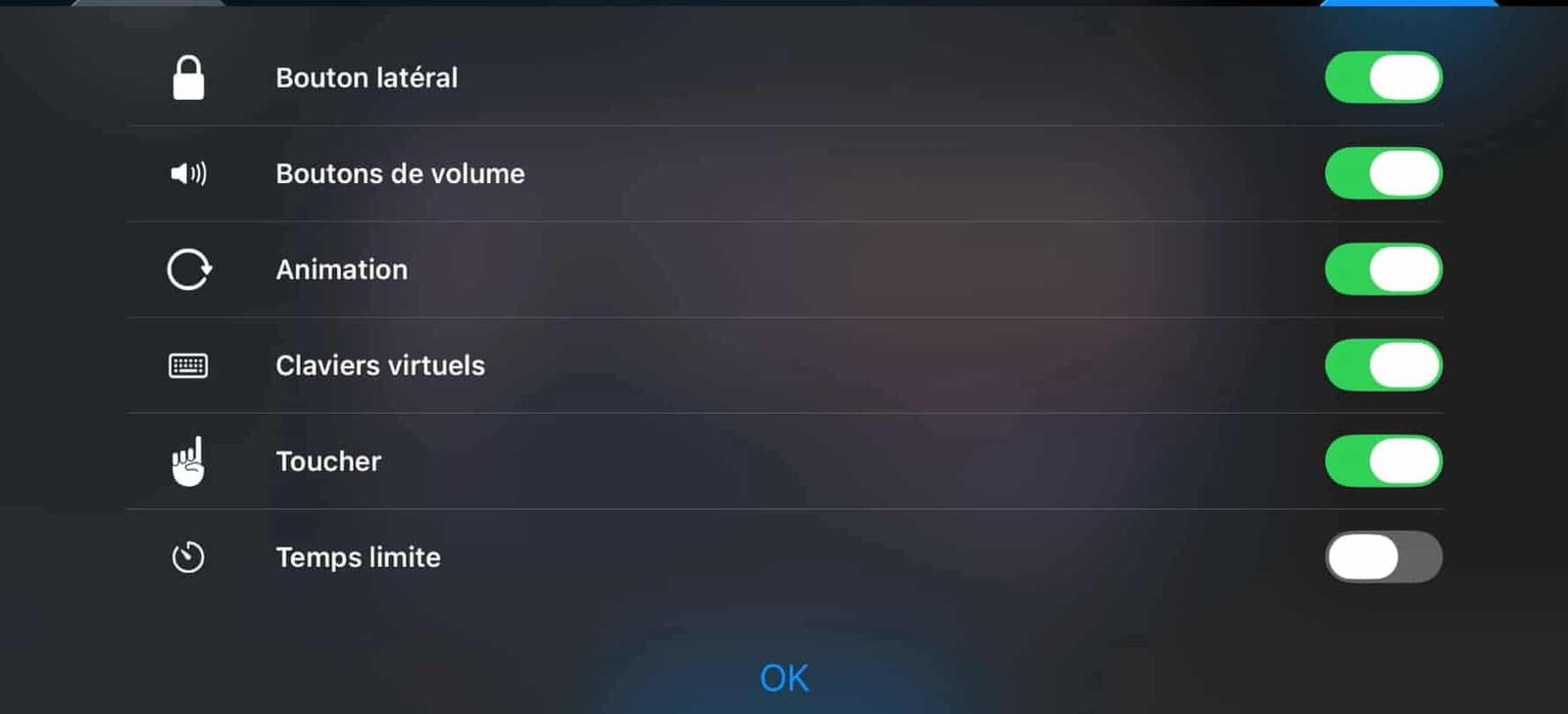
With guided access activated, various options accessible at the bottom of the screen, “Session settings”, allow you to manage the parameters.

© iOS screenshot by pocketphotography.com
There is a timer in particular, but also the possibility of activating or deactivating certain physical or virtual commands.
© iOS screenshot by pocketphotography.com
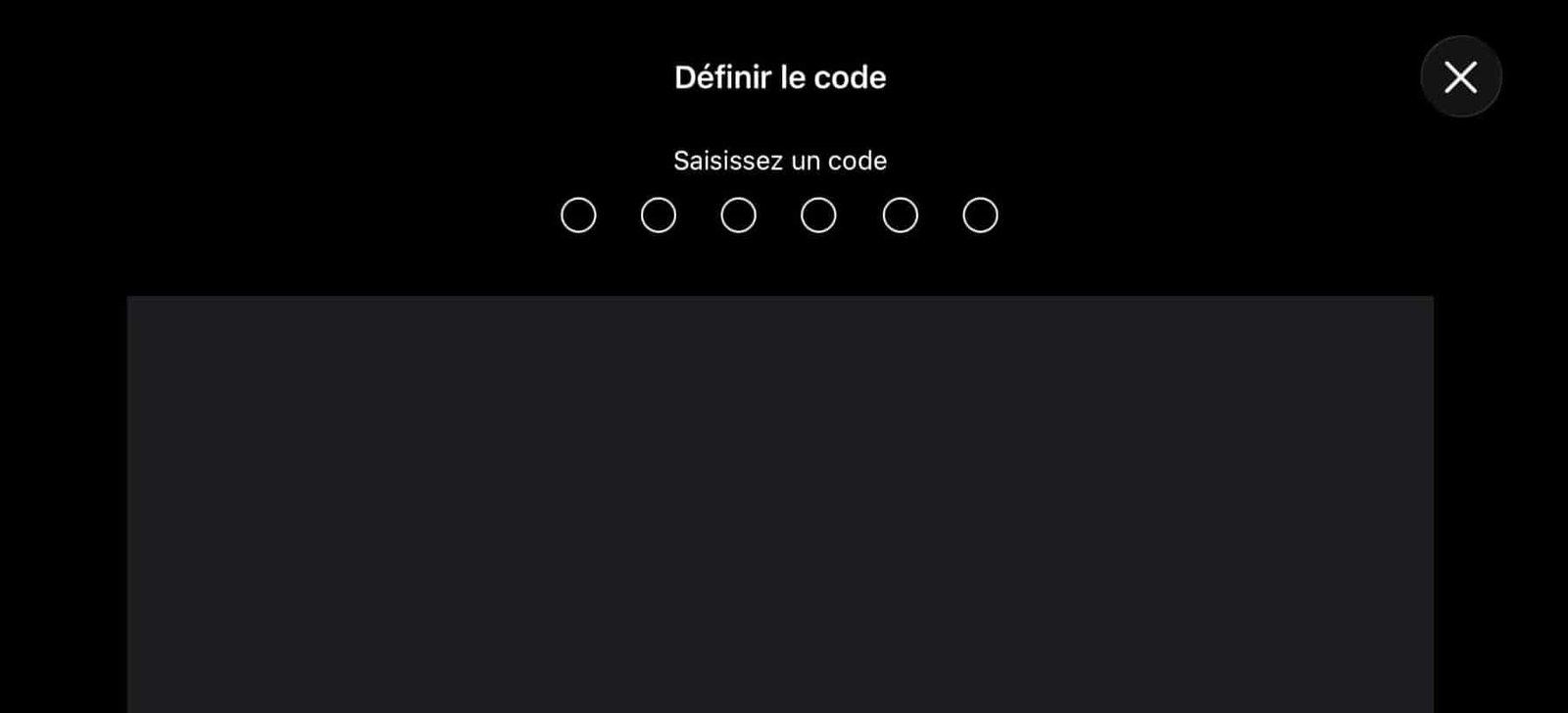
But even more interesting: when launching guided access, you are asked to enter a code which will be useful to exit this mode, and therefore the authorized app.
© iOS screenshot by pocketphotography.com
Thus, a child can have fun in a game without being able to launch other apps, on the iPhone or iPad. It should be noted that guided access will in all cases block use of a single app; it will not be possible to open access to two or more apps.
To deactivate “Guided Access”, triple-press the Home button or the Power button and enter the code chosen when launching the session. And there you have it, you are once again free to act on your iPhone or iPad.
Who among you is already using this feature or planning to use it in the future?

pocketphotography.com – Official pocketphotography.com app
By: Keleops AG