We recently shared with you a study concerning iPhone storage. These days, files are getting bigger and bigger, so much so that a 64 GB iPhone is no longer enough for ordinary people. The improvement in the quality of photos, videos, music, applications, games seems to be the main cause.
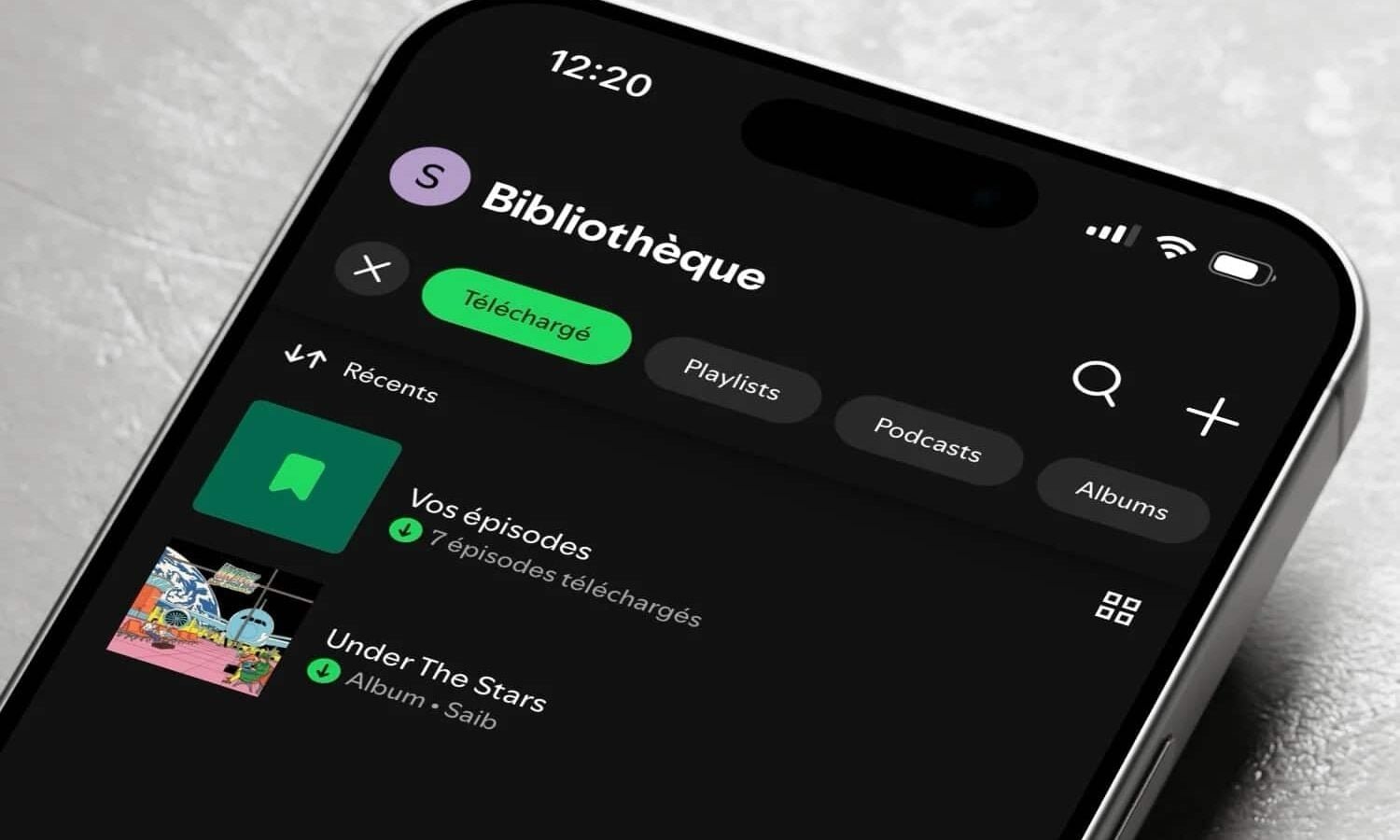
With files becoming ever larger, managing them efficiently sometimes becomes necessary to avoid running out of storage. Songs downloaded from Spotify can, for example, quickly clutter up the memory. Fortunately, there are simple solutions for cleaning. Learn two methods today to delete your Spotify downloads and free up space on your iPhone.
Method 1: via app settings
The first option goes directly through the Spotify application. It allows you to delete all downloads in a few clicks:
- Open the Spotify app
- Tap the “Home” icon at the bottom left

No products found.
© Spotify screenshot by pocketphotography.com
- Tap your avatar at the top right to access your profile
- Select “Preferences & Privacy”

© Screenshot of the Spotify app by pocketphotography.com
- Go to the “Storage” section

© Screenshot of the Spotify app by pocketphotography.com
- Tap “Delete All Downloads”

© Screenshot of the Spotify app by pocketphotography.com
The handling is quick and convenient. It only erases downloaded files, without touching your playlists or favorites. Ideal for express cleaning without losing your data.
Method 2: reinstall the app
For a more radical cleaning, you can simply uninstall then reinstall Spotify:
- Go to Settings > General > iPhone Storage

© iOS screenshot by pocketphotography.com
- Select the Spotify app from the list and choose “Delete app”

© iOS screenshot by pocketphotography.com

© iOS screenshot by pocketphotography.com
This method clears all Spotify related files including cache. She frees up more space. Your playlists and preferences are stored in your online account.
Whichever method you choose, you will recover precious gigabytes from your iPhone. Enough to install new apps or store more photos and videos. Do not hesitate to repeat the operation regularly to optimize your storage space.

Spotify
By: Spotify Ltd.