Have you been dreaming of something new for your iPhone home screen? iOS did it! Since version 18, the system offers customization options never before seen on Apple smartphones. For example, it is possible to modify the icons as you wish.
You can move them, delete their name and modify them with an option which of course has not gone unnoticed: tint them using a color filter. In black and white, or whatever color you prefer. We’ll explain how to do it!
Step 1: Enter Edit Mode
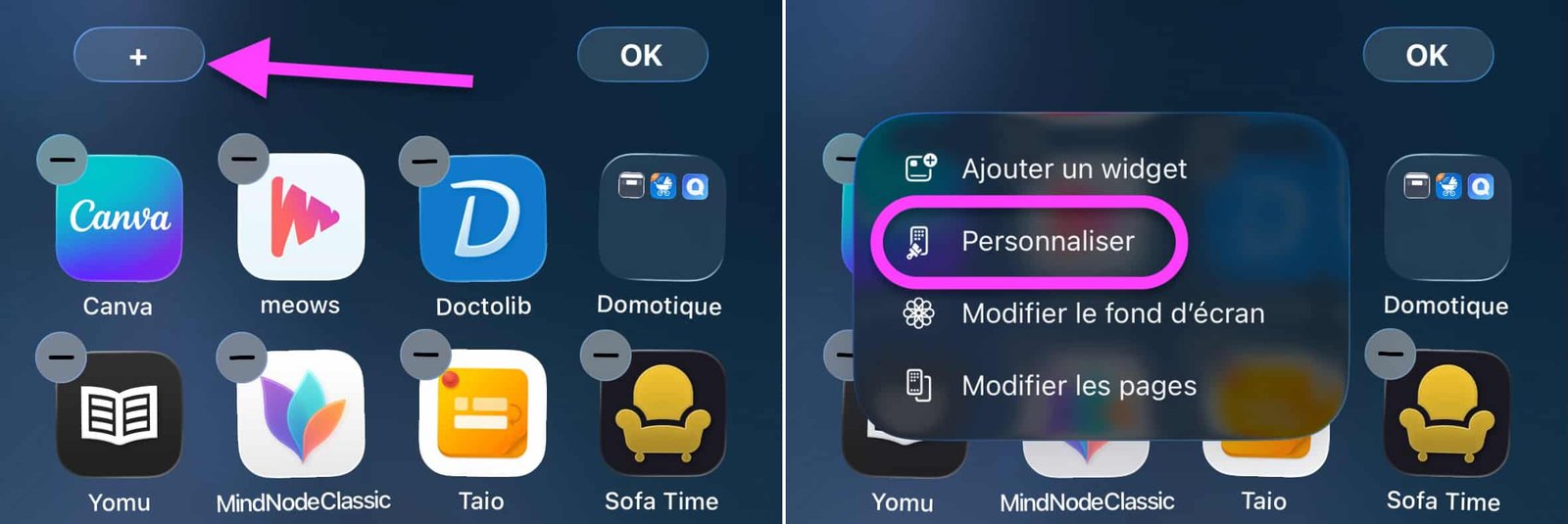
The first thing to do is to enter edit mode. How ? By tapping and holding anywhere on the Home screen. Easy ! Then, a pressure on “+” at the top left, then “Customize” in the menu and you are there.
No products found.
© iOS screenshot by pocketphotography.com
Step 2: play with shades
Now look at the bottom of the screen. Do you see the banner with “Default”, “Dark”, “Transparent” and “Tinted”? It’s your color palette. Tap “Tint” and let the magic happen.
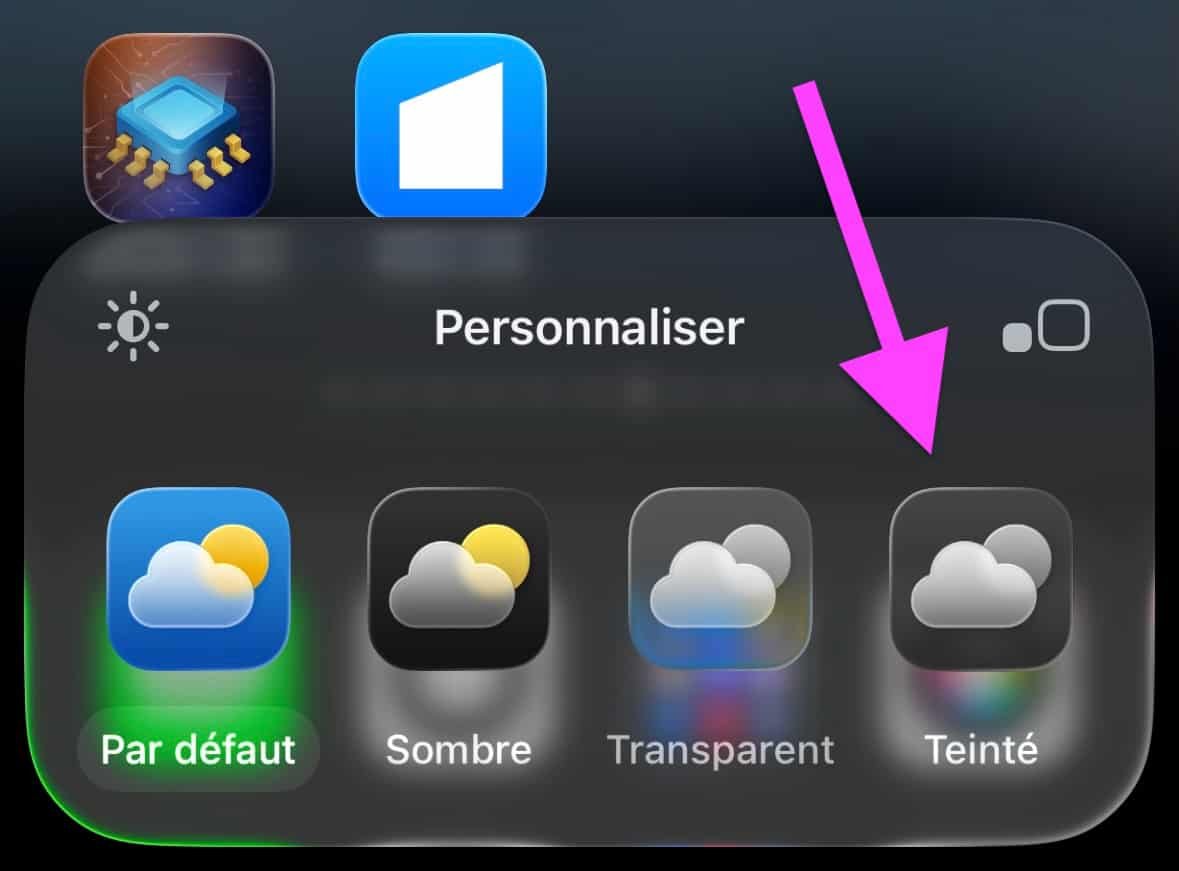
© iOS screenshot by pocketphotography.com
Step 3: Find the Perfect Color
Play around with the sliders to choose the shade you like and adjust its intensity. You can even use the eyedropper at the bottom right to draw a color directly from your wallpaper. Practical for perfect harmony!
To obtain a monochrome shade, with everything in black and white, simply touch the option positioned in the middle below the gauges.
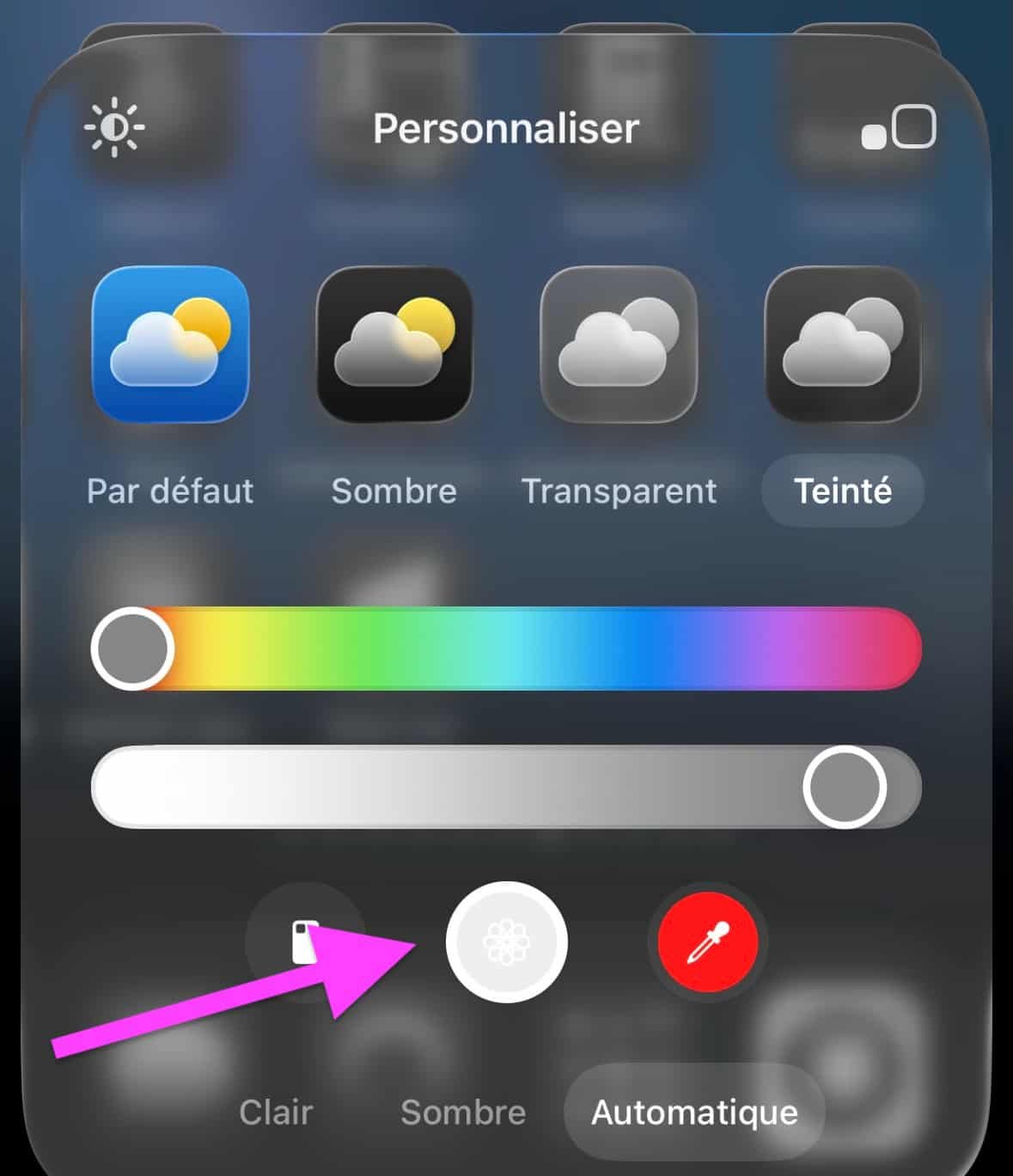
© iOS screenshot by pocketphotography.com
Step 4: validate and admire
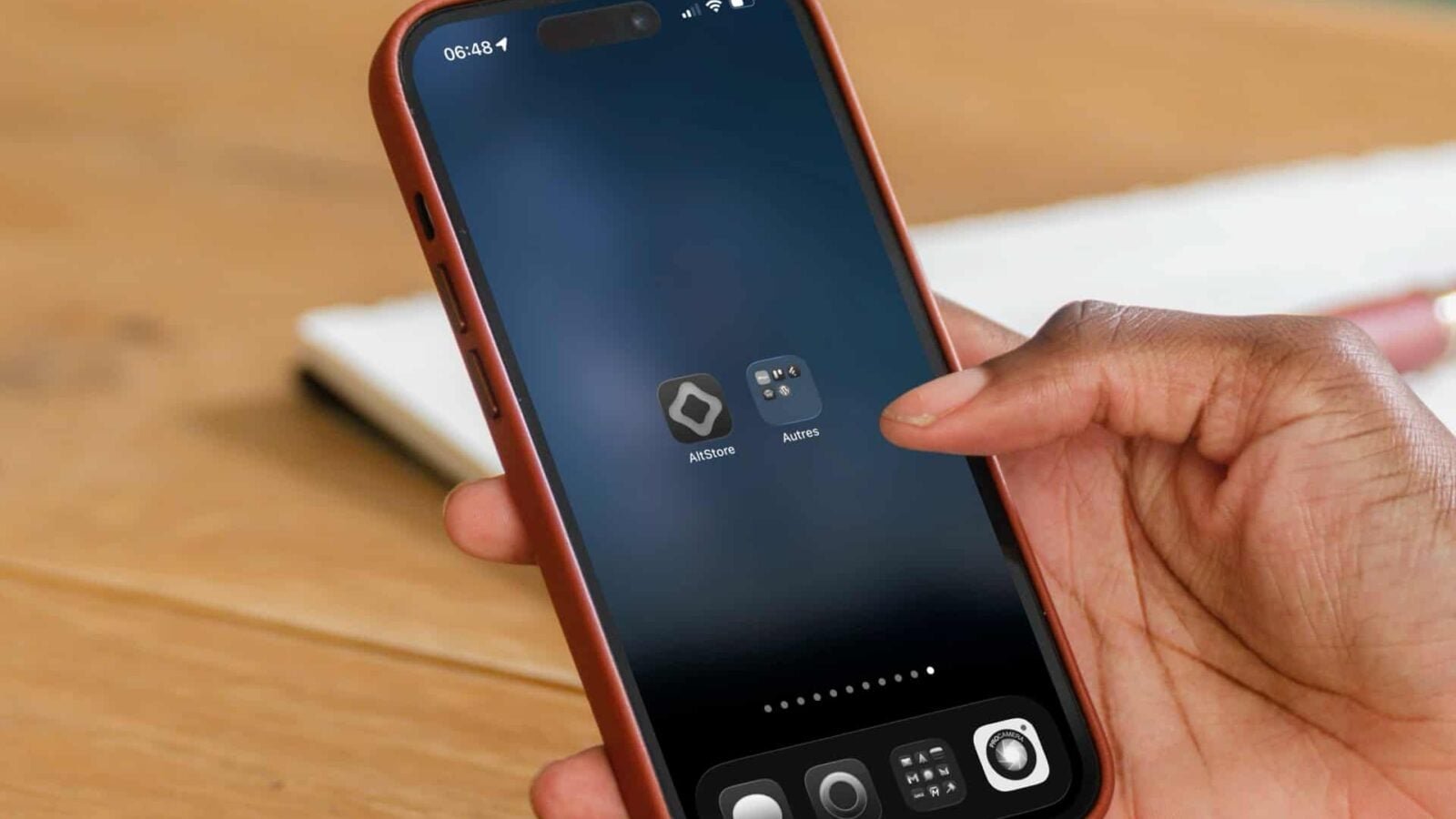
After finding a satisfactory shade, tap anywhere outside the personalization pane. And there you have it, your icons proudly display their new color, widgets included!
Below is our black and white example.
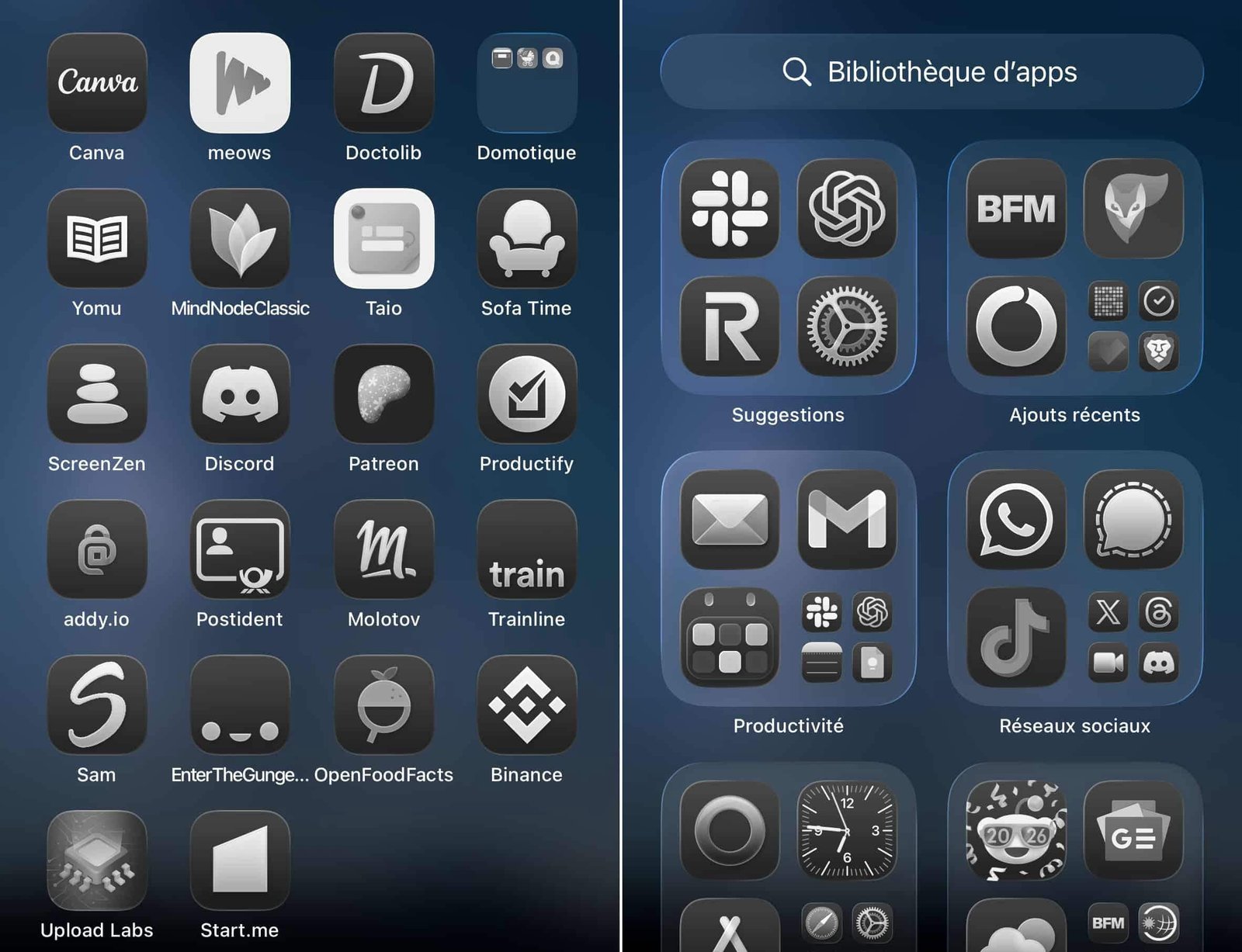
© iOS screenshot by pocketphotography.com
Personalizing your home screen is, as you can see, child’s play. In just a few steps, you can completely change the appearance of your interface.
Bonus: remove app titles
As mentioned, iOS also allows you to hide the names of applications under the icons, for a more minimalist and refined style. Follow this link to view our tutorial on this subject.

By: Keleops AG