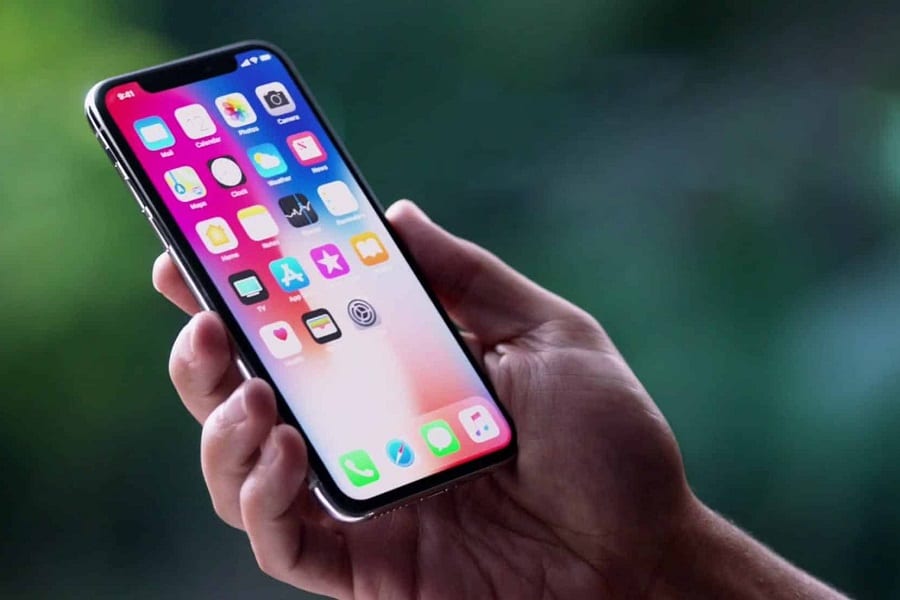
In the realm of photography, the iPhone has emerged as a formidable tool, offering both convenience and a surprising array of features. Among these capabilities, slow shutter photography stands out, allowing photographers to achieve stunning effects like motion blur, light trails, and low-light photography. This guide will walk you through mastering the art of slow shutter photography using your iPhone, complete with top tips and techniques to elevate your photographic skills.
Understanding Slow Shutter Photography
Before diving into tips and techniques, it’s essential to understand what slow shutter photography entails. At its core, slow shutter photography involves using longer exposure times to capture motion in a scene. This technique can create a sense of movement, add drama to a photograph, and highlight low-light environments.
The Basics of Shutter Speed
Shutter speed is the length of time the camera’s sensor is exposed to light. In traditional cameras, this is controlled by physical shutters; however, in iPhones, it’s managed digitally. A slower shutter speed allows more light to hit the sensor, capturing the motion of moving objects or light sources.
Applications of Slow Shutter Photography
Slow shutter photography is versatile, with applications extending across various scenarios:
No products found.
- Light Trails: Capture the mesmerizing trails of car lights at night.
- Motion Blur: Convey movement in subjects like waterfalls or moving crowds.
- Low-Light Photography: Enhance photos in dimly lit conditions without the need for flash.
Setting Up Your iPhone for Slow Shutter Photography
The iPhone doesn’t have a built-in slow shutter mode, so you’ll need to use third-party apps to achieve the effect. Here’s how to get started:
Choosing the Right App
There are several apps designed to help you capture slow shutter images. Some of the most popular include:
- Slow Shutter Cam: This app offers various modes such as Motion Blur, Light Trail, and Low Light.
- ProCam: Known for its extensive manual controls, including shutter speed adjustments.
- Camera+ 2: Offers a range of shooting modes, including long exposure.
Setting Up the App
Once you’ve chosen an app, follow these general steps to set it up for slow shutter photography:
- Open the App: Launch the app you’ve selected.
- Select the Mode: Choose the appropriate mode (e.g., Motion Blur, Light Trail) depending on your subject.
- Adjust Settings: Set your desired shutter speed and ISO. A slower shutter speed will capture more motion.
- Stabilize Your iPhone: Use a tripod or a stable surface to minimize camera shake.
Techniques for Capturing Stunning Slow Shutter Photos
With your iPhone set up, it’s time to explore some techniques for capturing impressive slow shutter images:
Creating Light Trails
Light trails are a popular subject in slow shutter photography. Follow these steps to capture stunning light trails:
- Location: Find a busy street or highway with moving vehicles.
- Timing: Shoot during the blue hour or night for the best light trails.
- Shutter Speed: Use a shutter speed between 5-30 seconds, depending on the speed of the traffic.
- Composition: Frame your shot to include both the road and an interesting background or foreground.
Capturing Motion Blur
Motion blur can add dynamism to your photos, making them more engaging. Here’s how to achieve it:
- Subject Selection: Choose a subject with movement, such as a waterfall, a running animal, or a busy street scene.
- Shutter Speed: Experiment with shutter speeds from 1/4 to 1 second to capture the desired amount of blur.
- Focus: Focus on a static element within the scene to create a contrast between motion and stillness.
Enhancing Low-Light Photography
Slow shutter speeds can dramatically improve low-light photography without using flash. Here’s how:
- ISO Settings: Use a low ISO to reduce noise, and compensate with a slower shutter speed.
- Stability: Use a tripod to prevent any motion blur from camera shake.
- Composition: Look for interesting light sources, such as street lamps or illuminated buildings.
Advanced Tips for Perfecting Slow Shutter Photography
Using Neutral Density Filters
If you’re shooting in bright daylight, achieving slow shutter effects can be challenging. A neutral density (ND) filter can help by reducing the amount of light entering the lens, allowing for longer exposures without overexposure.
Experimenting with Burst Mode
Some apps allow you to use burst mode in conjunction with slow shutter speeds to create unique effects. This technique involves taking multiple exposures in quick succession and blending them to enhance motion effects.
Refining Composition and Lighting
Composition and lighting are crucial in slow shutter photography. Consider these tips:
- Leading Lines: Use natural or architectural lines to guide the viewer’s eye through the image.
- Contrast: Look for scenes with strong contrasts in light and dark to add depth and dimension.
- Foreground Interest: Include elements in the foreground to add context and interest.
Post-Processing Your Slow Shutter Photos
Post-processing can enhance your slow shutter photos, bringing out details and correcting any exposure issues. Here are some tips:
Basic Adjustments
Start with basic adjustments such as cropping, straightening, and exposure correction. Apps like Adobe Lightroom Mobile or Snapseed offer powerful tools for these tasks.
Enhancing Colors and Contrast
Slow shutter photos can sometimes lack contrast due to their nature. Use editing tools to enhance colors, adjust contrast, and bring out details.
Reducing Noise
Long exposures can introduce noise, especially in low-light conditions. Use noise reduction tools to smooth out grain while preserving detail.
Conclusion
Mastering slow shutter photography with your iPhone opens up a world of creative possibilities. With the right tools, techniques, and a bit of practice, you can capture stunning images that convey motion, drama, and beauty. Whether you’re capturing light trails, motion blur, or low-light scenes, the tips and techniques outlined in this guide will help you elevate your iPhone photography skills to new heights.