
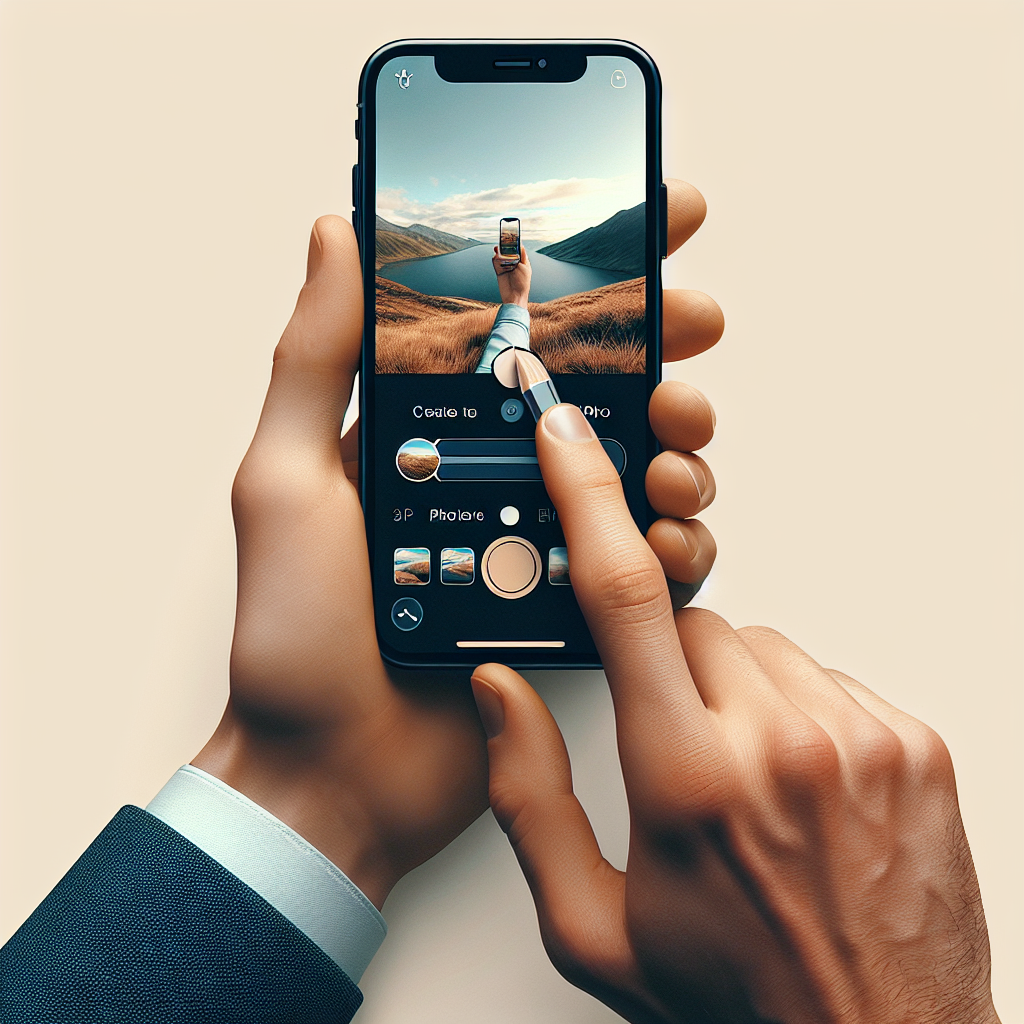
Introduction to Live Photos
Apple’s Live Photos feature, first introduced with the iPhone 6s, revolutionized the way we capture moments. By recording 1.5 seconds before and after you press the shutter button, Live Photos bring your memories to life with sound and movement. This hybrid of still photography and video offers unique opportunities for creativity and storytelling.
Capturing Live Photos
Before diving into editing, it’s essential to understand how to capture the best Live Photos. Ensure the Live Photo feature is enabled by tapping the circular icon at the top of your iPhone’s Camera app. When active, this icon will appear yellow. To maximize the potential of your Live Photos, follow these tips:
- Hold Steady: Maintain a steady hand while capturing to ensure crisp quality.
- Frame Your Shot: Consider the entire 3-second span of your Live Photo and anticipate motion within your frame.
- Sound Sensitivity: Be mindful of background noise, as it will be captured along with your Live Photo.
Accessing and Viewing Live Photos
Once you’ve captured a Live Photo, access it in your Photos app. You can identify Live Photos by the “LIVE” label in the top-left corner. To view the movement, firmly press the photo (on devices with 3D Touch) or long-press it on others. This action activates the animation, allowing you to relive the captured moment.
Editing Live Photos
Editing Live Photos offers a set of tools that can transform your photos into works of art. Here’s a comprehensive guide to mastering Live Photo editing on your iPhone:
No products found.
Trimming the Length
To focus on specific parts of your Live Photo, you can trim its length. Follow these steps:
- Open the Live Photo in the Photos app.
- Tap “Edit” in the top-right corner.
- At the bottom of the screen, you’ll see a timeline of frames. Drag the handles to adjust the start and end points.
- Tap “Done” to save your changes.
Changing the Key Photo
The key photo is the still image displayed in your library. To change it:
- Open the Live Photo and tap “Edit.”
- Scroll through the frames and find your desired key photo.
- Tap “Make Key Photo,” and then “Done” to confirm.
Applying Filters
Filters can dramatically enhance the mood and tone of your Live Photos:
- In the Edit mode, tap the filter icon (three overlapping circles).
- Swipe through the available filters and select one that suits your style.
- Tap “Done” to apply the filter.
Adjusting Lighting and Color
Fine-tune lighting and color for a polished look:
- While in Edit mode, tap the adjustment icon (dial).
- Adjust parameters like exposure, brilliance, and saturation to enhance the image.
- Once satisfied, tap “Done” to save the adjustments.
Adding Effects
Live Photos support unique effects that can add a creative touch:
- Loop: Continuously loops the animation, perfect for capturing endless movement.
- Bounce: Plays the animation forward and then in reverse, creating a boomerang effect.
- Long Exposure: Simulates a long exposure effect, ideal for capturing flowing water or light trails.
To apply these effects, swipe up on the Live Photo and choose your desired effect from the options presented.
Sharing Live Photos
Sharing your Live Photos with others can be done in several ways:
- iMessage: Send Live Photos to other Apple users via iMessage, and they’ll retain their animation.
- Social Media: Share as standard photos or convert to videos/GIFs for platforms that don’t support Live Photos.
- AirDrop: Quickly transfer Live Photos to nearby Apple devices while maintaining their live attributes.
Converting Live Photos
For broader sharing or editing, consider converting Live Photos to videos or GIFs:
Converting to Video
- Open the Live Photo and tap the share icon.
- Select “Save as Video” from the options.
Converting to GIF
Using third-party apps like GIPHY or Lively, you can convert Live Photos to GIFs. These applications offer additional customization options for size and speed.
Preserving the Original Live Photo
When editing, always preserve the original Live Photo in case you want to revert changes. To duplicate a Live Photo:
- Open the Live Photo and tap the share icon.
- Select “Duplicate” and choose “Duplicate as Live Photo.”
Advanced Editing with Third-party Apps
For those seeking more advanced editing capabilities, several third-party apps offer robust features:
- Enlight: Known for its comprehensive suite of editing tools, allowing detailed adjustments and creative overlays.
- VSCO: Offers professional-grade filters and manual controls to refine your Live Photos.
- Snapseed: Provides precise control over editing with features like selective adjustments and healing tools.
Conclusion: Unlocking the Potential of Live Photos
Mastering Live Photo editing on your iPhone opens a world of creative possibilities. From simple adjustments to advanced transformations, these tools allow you to capture and share your memories like never before. By understanding the nuances of Live Photos and leveraging the available tools, you can create dynamic and engaging content that stands out.
Whether you’re a casual photographer or a seasoned pro, Live Photos offer a unique medium to express your vision. Embrace the capabilities of your iPhone, experiment with different techniques, and enjoy the process of bringing your photos to life.


